Improve your posts
Add trust and answer blocks: author box, reviewed by, sources, fact check, lists and definitions
Six blocks that show readers who wrote and checked a page and where the facts come from, and give search engines the matching structured data: Person, reviewedBy, citations, ClaimReview, ItemList and DefinedTerm.
Time
10 minutes
What you need
- The plugin installed
- The block editor
- Structured data on (Settings, Schema & FAQ)
Google looks for signs that a page is written and checked by people who know the subject (experience, expertise, authoritativeness and trust, often shortened to E-E-A-T), and AI assistants look for answers they can quote and sources they can cite. These six blocks show those signs to readers and print the matching structured data, so what readers see and what search engines read can never disagree. Add one with the + button, in the OnlyAI SEO group.
Author box
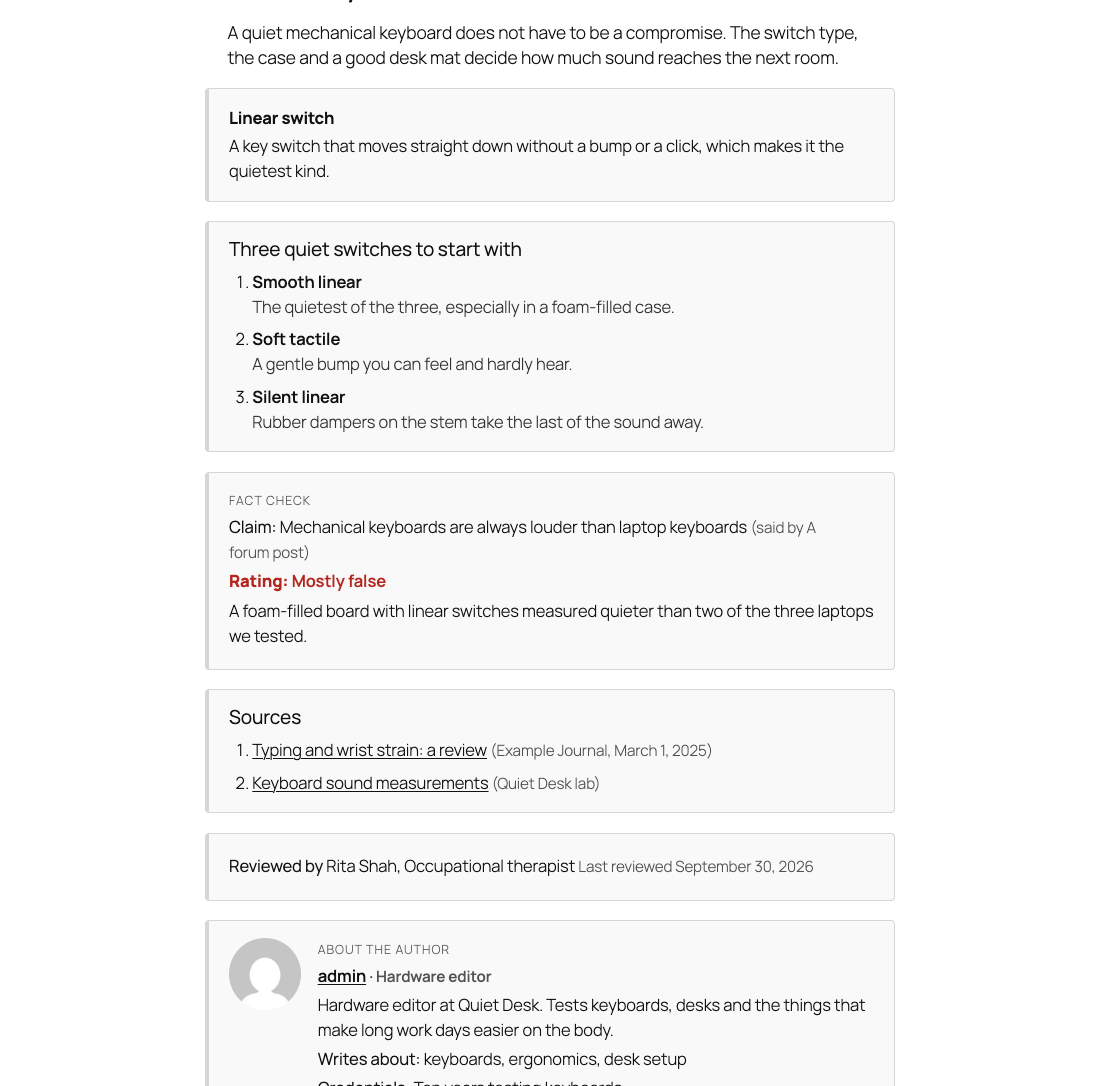
Shows who wrote the article: photo, name, job title, short bio, the topics they write about, credentials and links to their profiles. It reads the name, photo, bio, job title and links from the user's profile (Users, Profile; the job title and profile links are in the section called Author details for search engines).
- Add the Author box block. By default it shows the post's author; pick someone else in the Author list (for example a co-author).
- Fill in Topics (separated by commas) and Credentials (for example "Registered dietitian, 12 years in clinical practice").
- Switch Show the short bio off if you only want the name and links.
For search engines it adds to the article's author the job title, description, photo, profile links (sameAs), knowsAbout and hasCredential. A co-author becomes a separate person recorded as a contributor.
Reviewed by
For pages where advice matters (health, money, law): who checked the page and when. Choose the label (Reviewed by, Medically reviewed by, Fact-checked by, Legally reviewed by, Edited by), then the name, role, an optional profile address, the date and a short note. Search engines get reviewedBy and lastReviewed on the page.
Sources
A numbered list of the references behind the article: title, address, publisher and date for each. Links open with rel="noopener nofollow". Search engines get them as citation on the article. Empty rows are dropped, and an address that is not http or https is ignored.
Fact check
Write the claim, who said it, when, your rating (True, Mostly true, Mixed, Mostly false, False or Unproven) and why. It prints a ClaimReview with the claim, the claimant and a rating from 1 to 5. Google shows fact-check results only for publishers that meet its fact-check policies, so this is for sites that really check claims; on other sites the data is harmless.
Top list
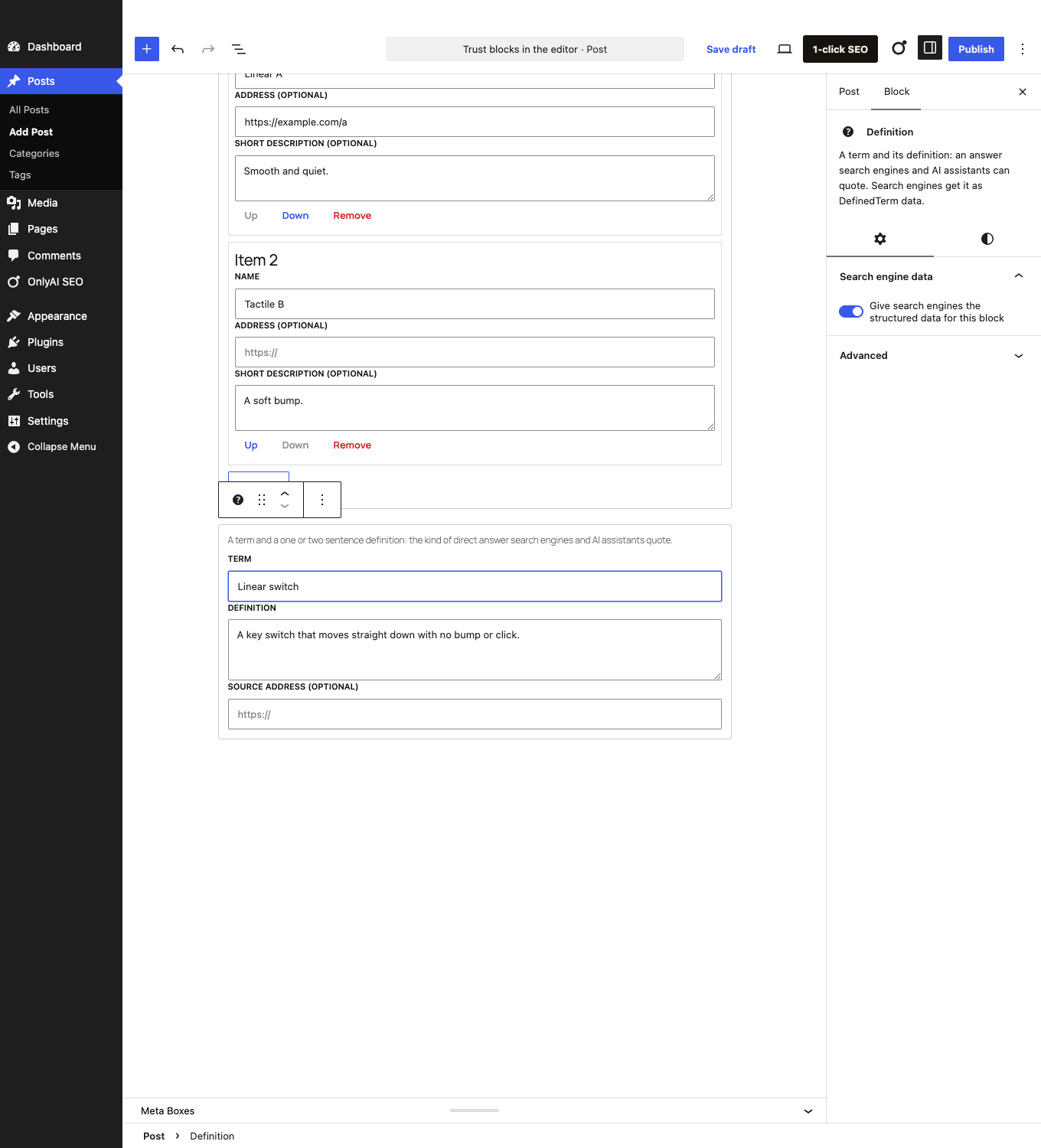
A ranked or plain list of items, each with a name, an optional address and a short description. Search engines and AI assistants get it as an ItemList with positions. Google shows list carousels only for some content types; the list still helps them understand the page.
Definition
A term and a one or two sentence definition, with an optional source: the direct answer search engines and AI assistants like to quote. Search engines get DefinedTerm data.
Switch the data off for one block
Each block has Search engine data in the block settings. Turn Give search engines the structured data for this block off if you only want the visible box. A block with nothing filled in prints nothing at all.
Check the result
- Publish or preview the page.
- In the editor open Previews & data (OnlyAI SEO) to see the structured data the page prints, or test the published page with Google's Rich Results Test.
- Look for the node you expect:
Personwith your job title,citationon the article,ClaimReview,ItemList,DefinedTerm, orreviewedByon the page.
Pair these with the FAQ and How-to blocks, the Rich result panel for products, recipes and events, and a real author profile.